
Ex: Use Twosense Security Events to Trigger Real-Time Adaptive Authentication
Automatically step authentication up or down as risk changes, keeping protection aligned with real-time risks
Overview
Goal: Use Twosense as a Shared Signals Framework (SSF) transmitter so ITDR can receive risk-level security events, update a High Risk Users list, and trigger real-time adaptive authentication in Advanced Passwordless Authentication (APA).
In this example, Twosense detects that the person using an account may no longer be the expected user.
- Twosense sends a Security Event Token (SET) to ITDR indicating that the user’s risk level changed to high.
- ITDR uses a monitor to add the user to a High Risk Users list.
- The APA Default rule set uses that list to step up authentication on the user’s next authentication event.
- If the user successfully completes step-up authentication, they can continue, but they remain on the High Risk Users list.
- When Twosense later detects that the user’s behavior has returned to normal, it sends a low-risk SET to ITDR.
- ITDR uses a second monitor to remove the user from the High Risk Users list, returning the user to the standard authentication flow on future authentication events.
This example assumes Twosense is configured as an SSF transmitter and ITDR is configured to receive Security Event Tokens.
Before You Begin
You need:
- An APA license, which includes an ITDR tenant
- A Twosense license that can send SETs
- Permission to configure SSF transmitters
- Permission to create lists, monitors, and rule set changes in ITDR
- An APA Default rule set, which three versions (Strict, Moderate, or Permissive) are automatically created when an ITDR tenant is provisioned for APA
Step 1: Configure Twosense as an SSF Transmitter
Configure Twosense to send security events to ITDR.
Twosense acts as the transmitter. ITDR acts as the receiver. Once configured, Twosense can send supported CAEP events, such as a Risk Level Change, into ITDR.
To configure the transmitter:
- Log in to itdr.imprivata.com.
- Click the Account icon in the top-right corner.
- Select Settings.
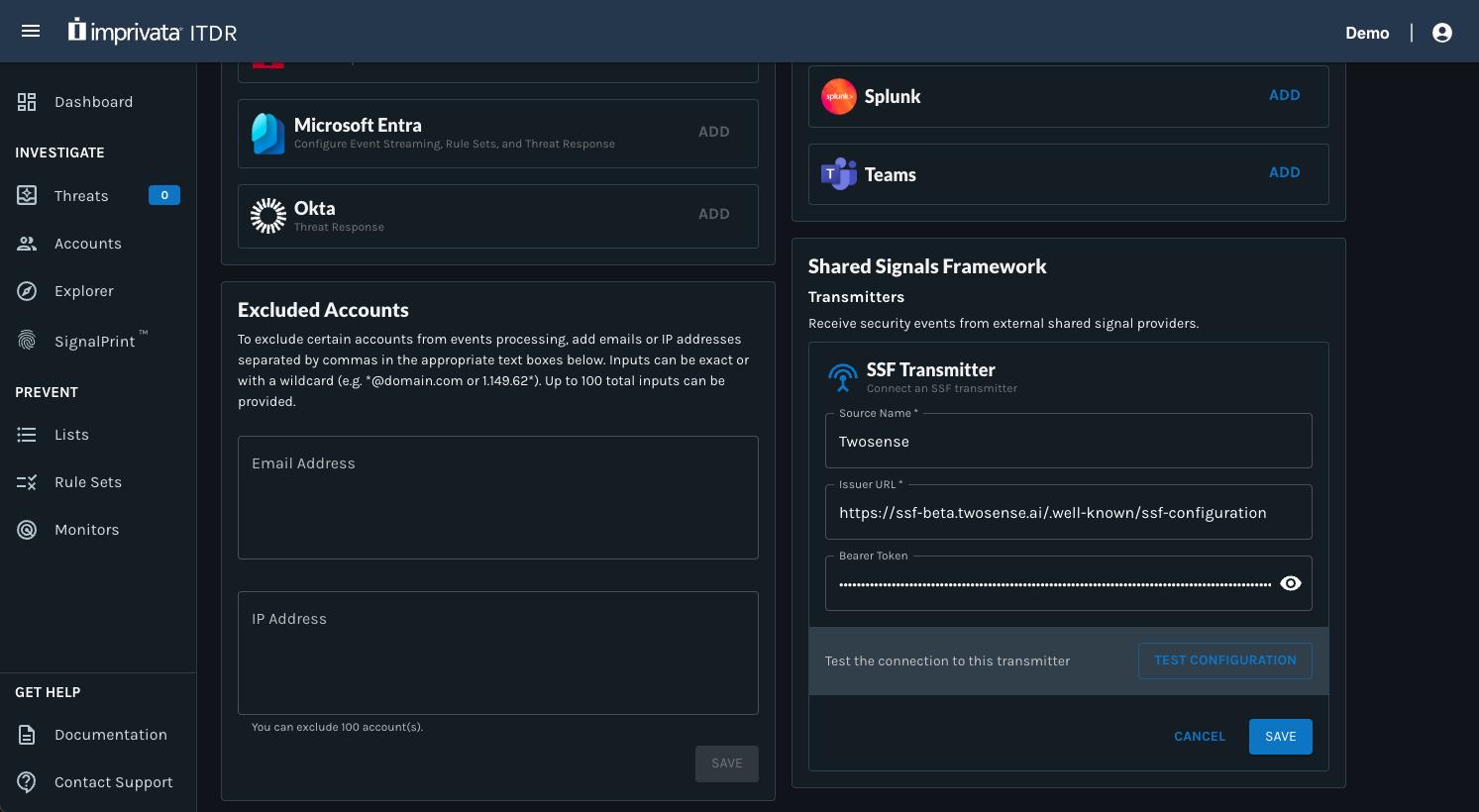
- Scroll down to the Shared Signal Framework section.
- Click Add on the SSF Transmitter card.
- Enter the required configuration details:
- Source Name: Twosense
- Issuer URL:
https://ssf-beta.twosense.ai/.well-known/ssf-configuration - Bearer Token: Copy this from your Twosense instance.
- Click Test Configuration to confirm that ITDR can connect to the transmitter.
- If the test is successful, click Save.
After the transmitter is configured, Twosense can send SETs to ITDR when supported security events occur.
After the transmitter is saved, ITDR displays the transmitter in the Shared Signals Framework section with a stream status.
The stream status indicates whether the transmitter is currently connected and available. For example:
- Active: The stream is connected and available.
- Error: The stream could not be created or verified. Review the error message, confirm the issuer URL and bearer token, and try again.
You can also click Verify Stream to re-check the connection. ITDR displays the last verified timestamp so you can see when the stream was most recently validated.
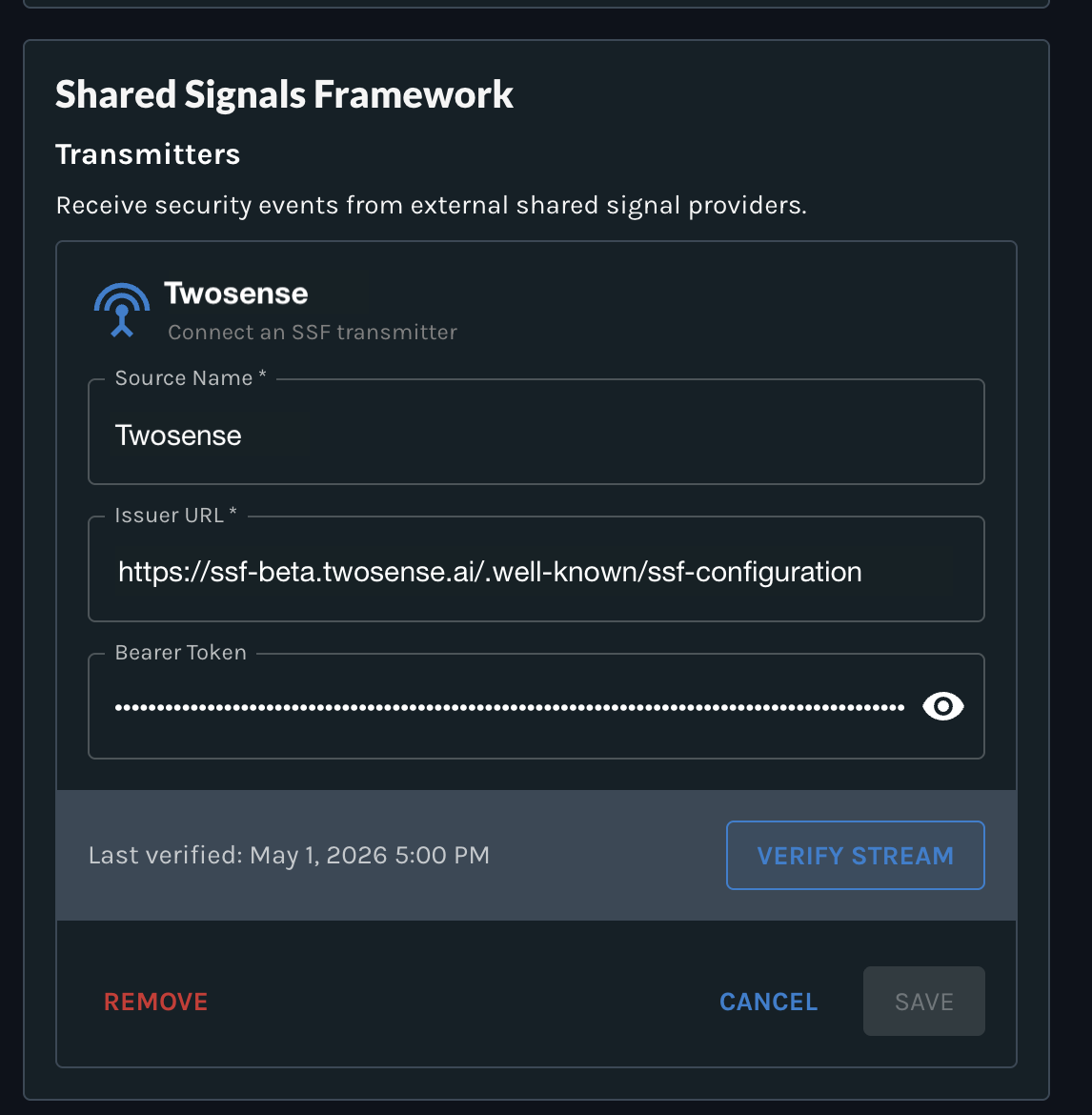
Twosense transmitter showing Active status
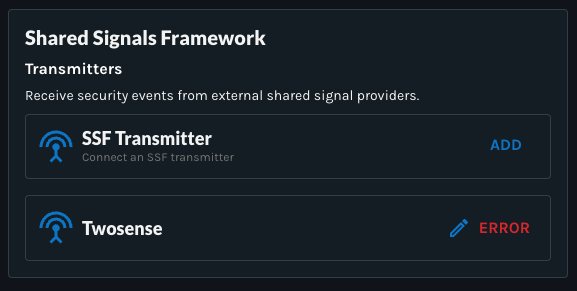
Twosense transmitter showing Error status
Once the transmitter is active, Twosense can send Security Event Tokens (SETs) to ITDR when supported security events occur.
Step 2: Create a "High Risk Users" List
Create an empty list that ITDR will automatically update with high-risk users.
Your APA Default rule set will reference this list to determine when a user should receive stepped-up authentication. Your security team can also use the list to investigate suspicious activity further if needed.
To create the list in ITDR:
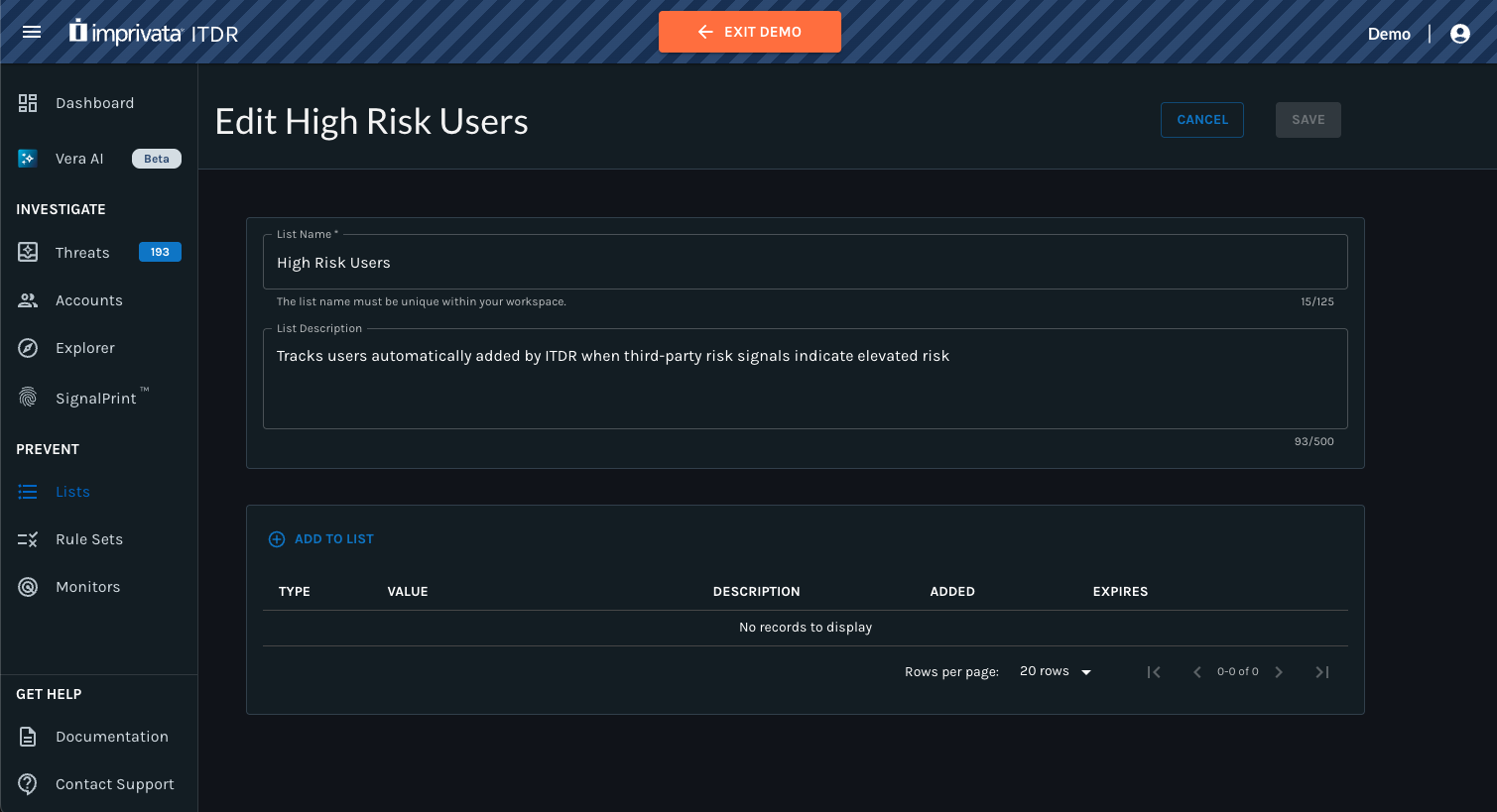
- Go to Lists.
- Click the orange + button.
- Name the list High Risk Users.
- Add a short description, such as:
Tracks users automatically added by ITDR when third-party risk signals indicate elevated risk. - Click Save.
This list starts empty. It will be updated automatically by monitors in a later step.
Step 3: Add a Rule to the APA Default Rule Set to Step Up Authentication for High-Risk Users
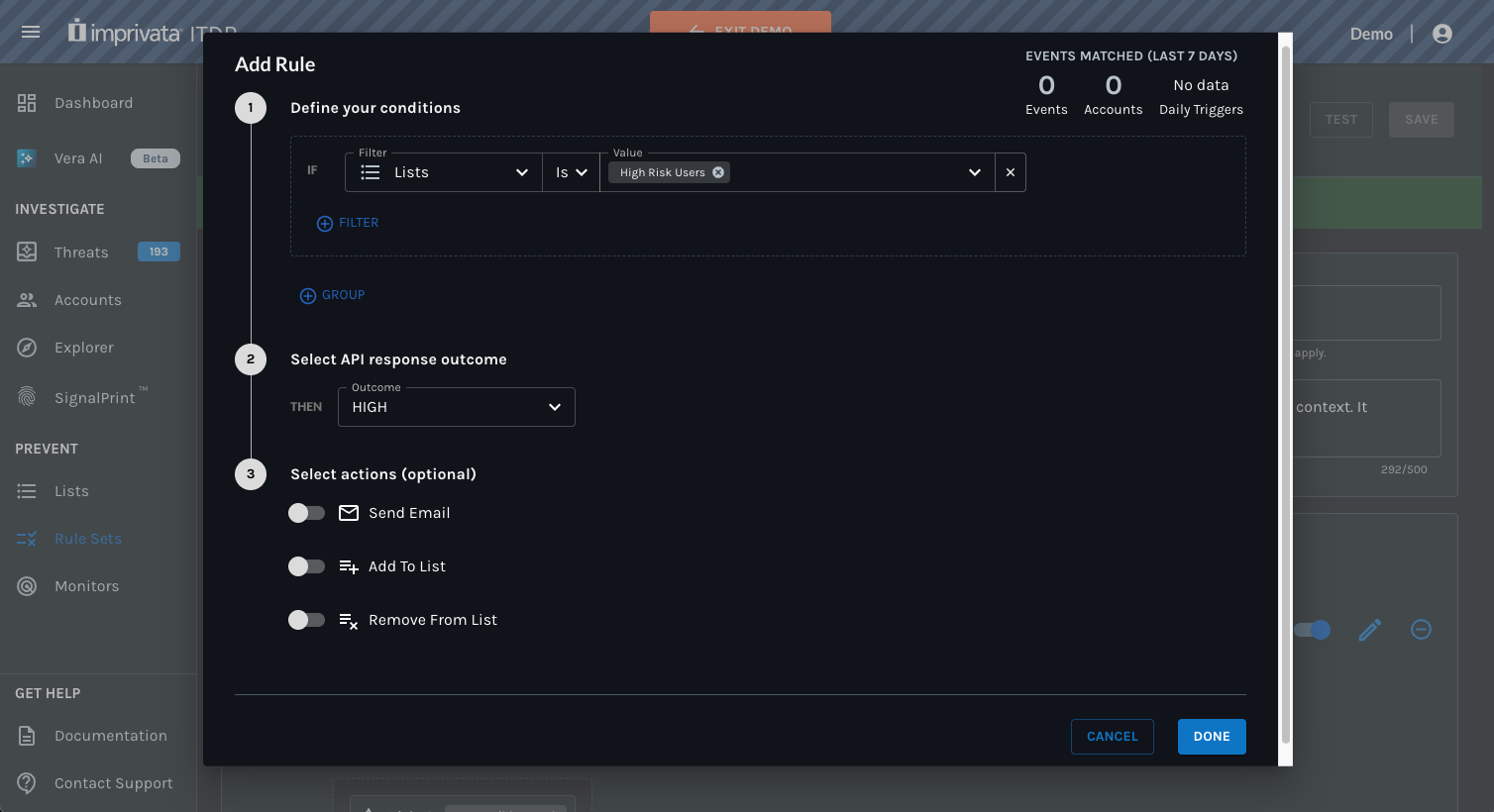
Add a rule to your APA Default rule set that checks whether the user is on the High Risk Users list.
When a user is on the list, the APA Default rule set can apply a higher-risk outcome and require a stronger authentication method on the next authentication event.
To configure the rule:
- Go to Rule Sets.
- Open the APA Default rule set you want to update, such as APA Default (Moderate).
- Edit the Active version.
- Add a new rule.
- Define the condition:
- Filter: Lists
- Operator: Is
- Value: High Risk Users
- Select the API response outcome:
- Outcome: HIGH
- Click Done.
- Define the condition:
- Move this rule above any existing rules with an API response outcome of "MEDIUM" or "LOW".
- Click Save on the Active version of the rule set.
Rules are evaluated in order. Place the High Risk Users rule above lower-risk rules so users on the list receive the HIGH outcome. Otherwise, a high-risk user may match a lower-risk rule first and receive a MEDIUM or LOW outcome instead.
Result: When a user is on the High Risk Users list, the next authentication event uses the High outcome. The user is prompted to complete the step-up authentication method configured for that outcome in EAM.
Step 4: Create Monitors to Automatically Update the High Risk Users List
Create two (2) monitors to keep the High Risk Users list aligned with Twosense risk changes.
- The first monitor adds users to the list when Twosense sends a high-risk SET.
- The second monitor removes users from the list when the user successfully completes step-up authentication, or when Twosense sends a SET indicating that the user’s risk level returned to low.
Monitor 1: Add users to the High Risk Users list when risk increases
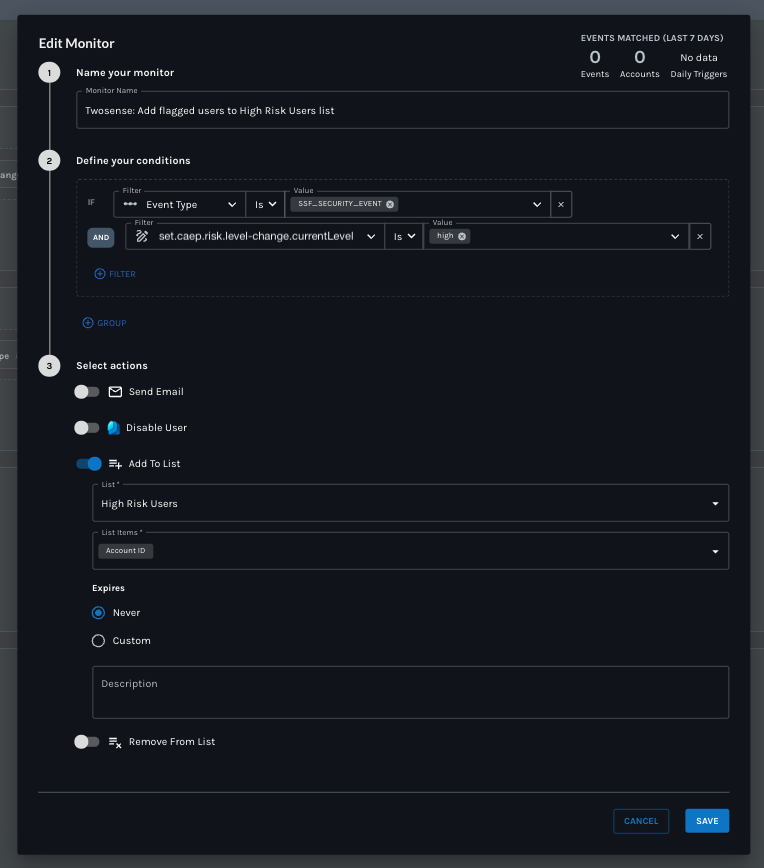
Create a monitor that detects when Twosense sends a high-risk SET.
In this example, Twosense detects that a user’s risk has changed to high and sends the following CAEP event to ITDR:
set.caep.risk-level-change.currentLevel = "high"
To configure the monitor:
- Go to Monitors.
- Click the orange + button.
- Name the monitor, such as Twosense: Add flagged users to High Risk Users list.
- Define the condition:
-
Filter: Event Type
-
Operator: Is
-
Event Type:
SSF_SECURITY_EVENTAND
-
Filter:
set.caep.risk-level-change.currentLevel -
Operator: Is
-
Value:
high
-
- Add an action:
- Action: Add to List
- List: High Risk Users
- List Items: Account ID (or Email)
- Expires: Never
- Click Save.
Result: When Twosense sends a high-risk SET, ITDR automatically adds the user’s Account ID to the High Risk Users list. On the next authentication event, the APA rule set sees that the user is on the list and prompts the user to complete step-up authentication.
Monitor 2: Remove users from the list when Twosense risk returns to low
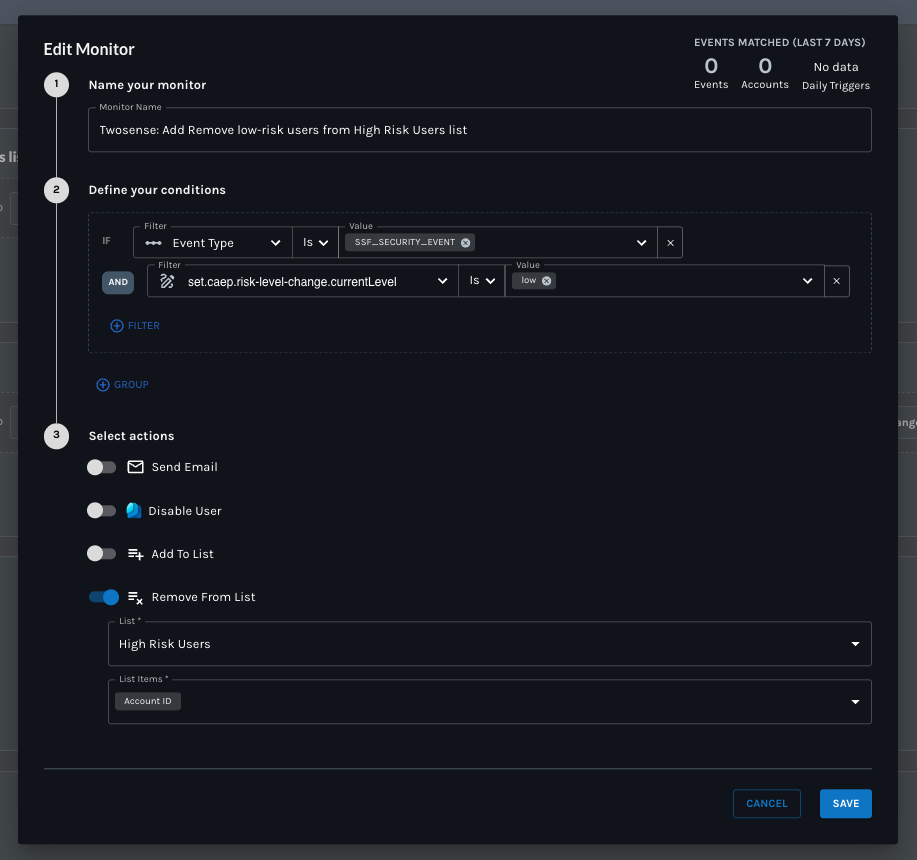
Create a second monitor that removes users from the High Risk Users list when Twosense sends a SET indicating that the user’s behavior has returned to normal and their risk level is now low.
Successful step-up authentication does not trigger a low-risk SET from Twosense. Twosense sends a low-risk SET only when it determines that the user’s behavior has returned to normal.
In this example, the low-risk CAEP event received by ITDR is:
set.caep.risk-level-change.currentLevel = "low"
To configure the monitor:
- Go to Monitors.
- Click the orange + button.
- Name the monitor, such as Twosense: Remove low-risk users from High Risk Users list.
- Define the condition:
- Filter: Event Type
- Operator: Is
- Event Type:
SSF_SECURITY_EVENTAND - Filter:
set.caep.risk-level-change.currentLevel - Operator: Is
- Value:
low
- Add an action:
- Action: Remove from List
- List: High Risk Users
- List Items: Account ID (or Email)
- Click Save.
Result: When Twosense sends a low-risk SET, ITDR automatically removes the user’s Account ID from the High Risk Users list. On the next authentication event, the user is no longer evaluated as high risk and returns to the standard authentication method associated with the lower-risk outcome.
Result: Adaptive Authentication Based on Twosense Security Event Tokens
With this configuration:
- Twosense detects when a user’s risk changes.
- Twosense sends the risk change to ITDR as a Security Event Token.
- ITDR uses monitors to automatically add or remove the user from the High Risk Users list based on Twosense risk-level changes.
- The APA Default rule set checks whether the user is on the High Risk Users list.
- When the user is on the list, the APA Default rule set applies the High outcome and prompts the user for step-up authentication on the next authentication event.
- If the user successfully completes step-up authentication, they can continue, but they remain on the High Risk Users list until Twosense determines their behavior has returned to normal.
- When Twosense sends a low-risk SET, ITDR removes the user from the High Risk Users list.
- On future authentication events, the user returns to the standard authentication method associated with the lower-risk outcome.
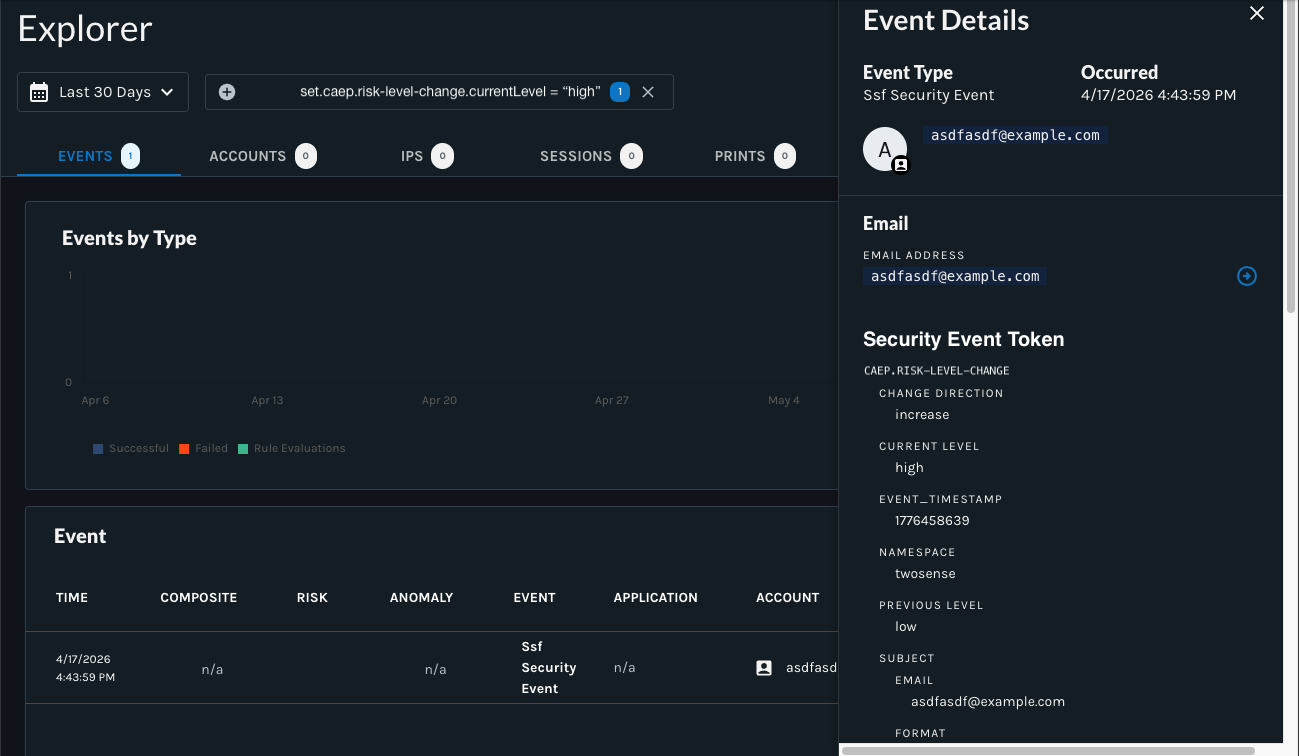
SET was received by ITDR as set.caep.risk-level-change.currentLevel = "high" for [email protected]
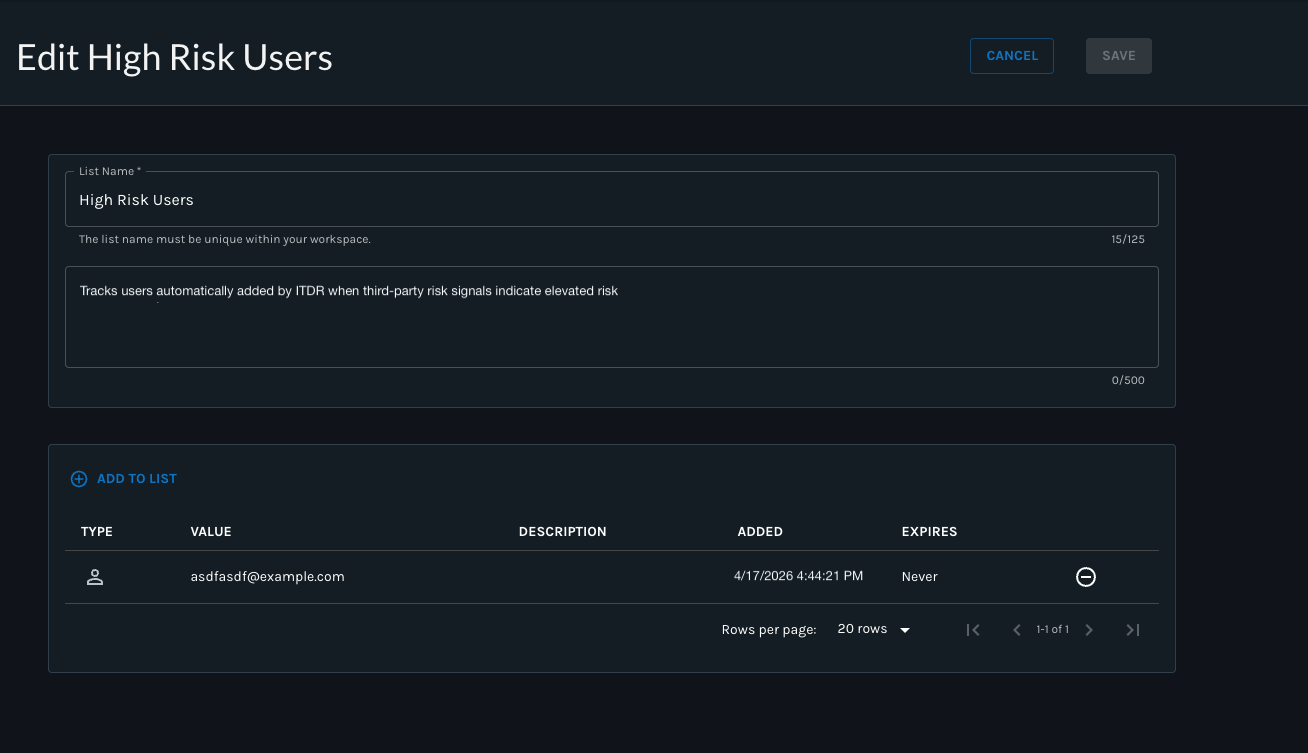
Subsequently, the Account ID = "[email protected]" was added to the High Risk Users list
Why This Matters: This configuration allows security teams to combine Twosense risk signals with ITDR’s own detections in one centralized place, then use those signals to drive real-time adaptive authentication and automated response.
Updated 20 days ago