
Imprivata PAS
Set up automated threat response support for Imprivata Privileged Access Security (PAS)
Connect your Imprivata Vendor Privileged Access Management (VPAM), Customer Privileged Access Management (CPAM), or Privileged Access Management (PAM) instance to ITDR to detect and respond to identity threats in real time for faster, more efficient remediation.
This page outlines how to configure an Imprivata PAS API role and key, then add the integration in ITDR.
Create PAS role and API Key
-
Sign in to Imprivata PAS as an admin user.
-
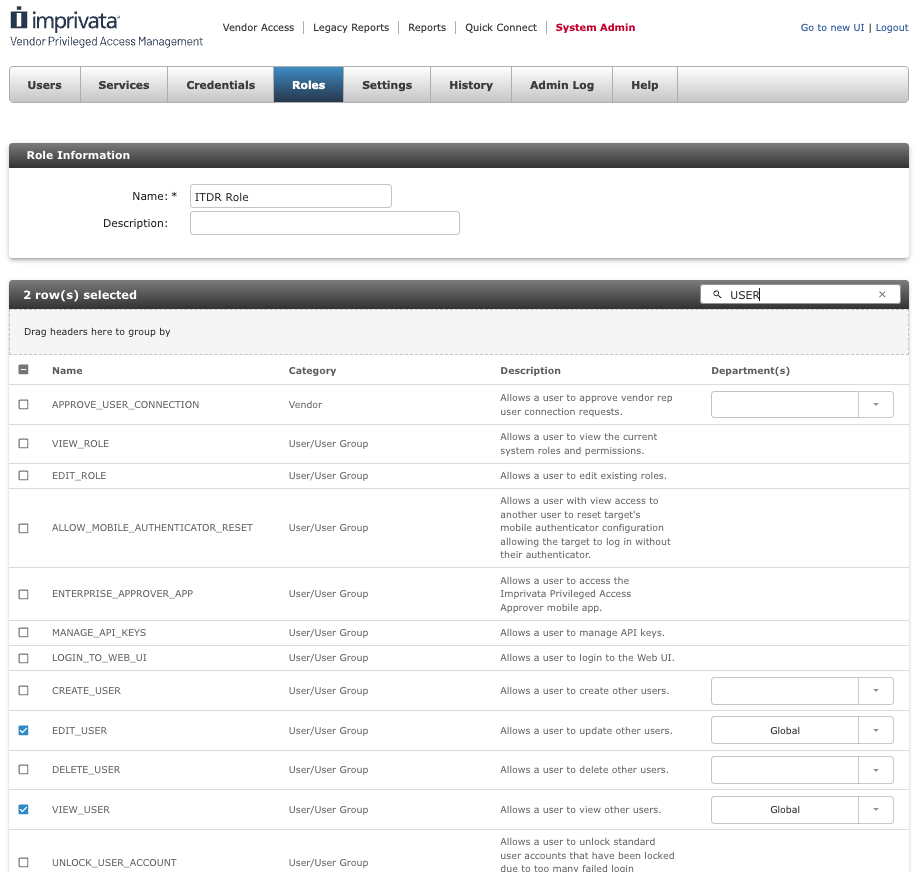
Create a role with the following permissions:
- EDIT_USER
- VIEW_USER
This role can manage standard users only. ⚠️ It cannot manage admin accounts.
-
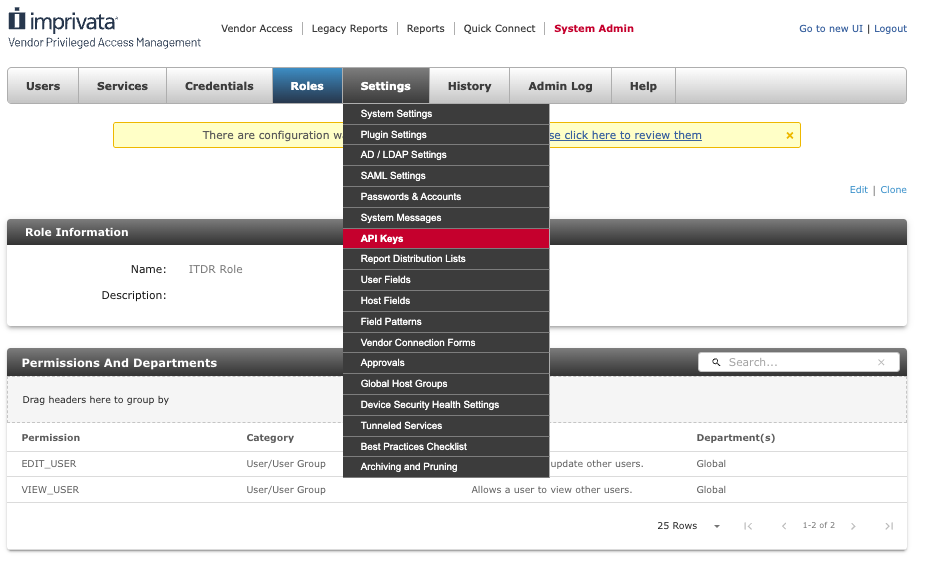
Open API Keys in Imprivata PAS.
-
-
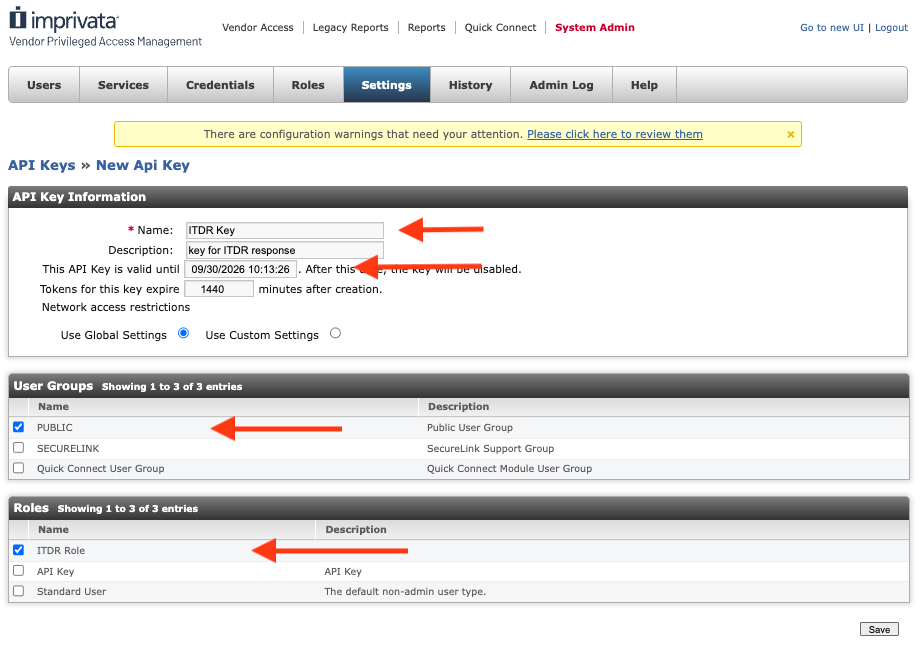
Create a new key using the role you just created.
- Under API Key Information:
- Enter Name
- Set an expiration date
- Under User Groups, select PUBLIC under User Groups
- Under Roles. select the role you just created
- Under API Key Information:
-
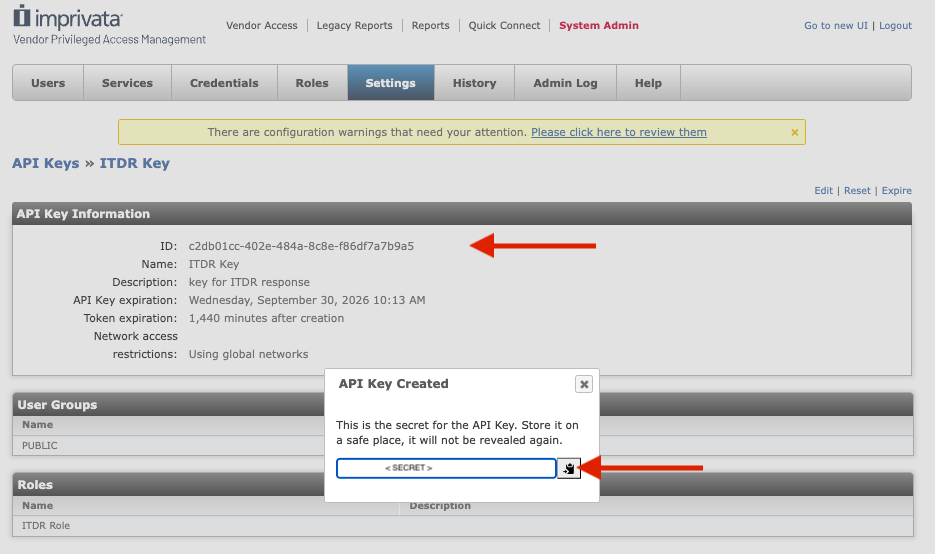
Save the key, then copy the secret and ID. You will need these values in ITDR.
-
Add the PAS integration in ITDR
- In ITDR, click on the Account icon > Settings.
- In the Identity Access Integrations tile, select Add for Imprivata PAS.
- Enter the Server URL, API Key ID, and Client Secret you copied from PAS.
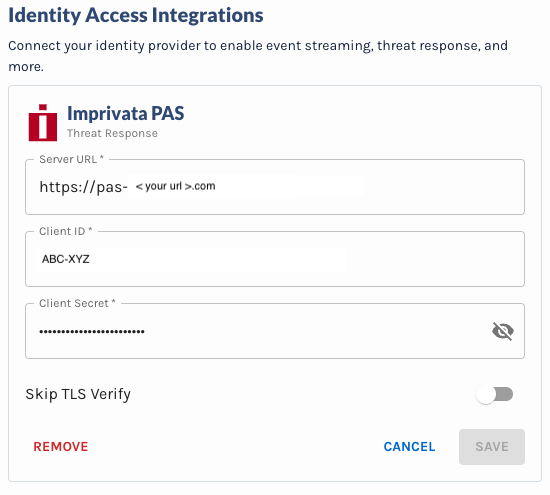
- Hit Save. You're all set!
Updated 2 months ago